
You just got a five-character code from your teacher and you’re staring at your screen wondering where it actually goes. That mix-up happens more often than you’d think, especially with new students, substitute teachers, or a classroom full of laptops all trying to connect at once. This guide walks you through nearpod join step by step, so you know exactly where to type your code, what happens after you hit enter, and what to do if the page won’t load. By the end, you’ll be able to get into any Nearpod session on the first try, whether you’re on a phone, a school Chromebook, or the app.
What Is Nearpod Join?
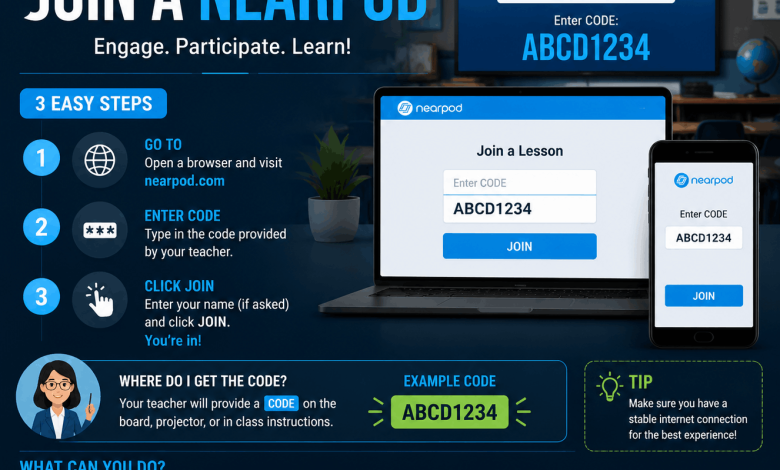
Nearpod join is the process students use to enter a live or self-paced lesson. Your teacher creates the lesson, launches it, and hands out a short code. You type that code into the student page, add your name, and you’re in the session within a few seconds.
The official page for this is join.nearpod.com. Typing nearpod.com/student gets you to the same spot. Both pages ask for one thing first: your code.
This is different from the teacher login page. Teachers sign in with an email and password to build and run lessons. Students almost never need an account at all. The code does the work, so you can join from a shared device without logging into anything.
How to Join a Nearpod Lesson (Step by Step)
Here’s the full process broken down so you can follow along even on your first try.
Step 1: Get Your Code From Your Teacher
Your teacher will say it out loud, write it on the board, or send it through a chat message. It’s five characters, usually a mix of letters and numbers.
Step 2: Go to the Join Page
Open a browser and type join.nearpod.com in the address bar. You can also go to nearpod.com and click “Join a Lesson” from the homepage.
Step 3: Enter the Code
A single box appears on the screen asking for your code. Type it carefully. Nearpod treats uppercase and lowercase the same way, but every letter and number still has to match.
Step 4: Type Your Name
Right after the code, a screen asks who you are. Some teachers turn on name validation, which checks your name against a class list they uploaded ahead of time. If that’s on, pick your name from the list instead of typing it fresh. If it’s off, type your name or join as a guest if that option shows up.
Step 5: Start the Lesson
Once your name goes through, the lesson loads right away. From here you just follow along with your teacher, or move at your own pace if the session is student-paced.
Three Ways Students Enter a Nearpod Session
The five-character code is the most common route, but it’s not the only one.
Code entry: You go to join.nearpod.com, type the code, and you’re in. Works every time as long as the code is active.
Direct link: Some teachers skip the code and share a clickable link through email, a class chat app, or a classroom announcement. Tapping it drops you straight into the lesson.
Through your school’s LMS: If your school uses Google Classroom, Canvas, Schoology, or Microsoft Teams, and your teacher has connected Nearpod to it, the lesson shows up right in your class feed. No code, no separate site to visit.
Each route lands you in the same lesson. Which one your teacher uses just depends on how their classroom is set up.
Joining Nearpod on Mobile
Nearpod runs on phones and tablets just as well as it does on a laptop, and a lot of students prefer the app because the buttons and text boxes are sized for touch screens.
On iPhone or iPad
Download the free Nearpod app from the App Store. Open it, and the join screen appears right away. Type your code, add your name, and you’re in.
On Android
Get the app from the Google Play Store. The steps match the iOS version exactly. Type the code, confirm your name, join the lesson.
One thing worth knowing from actually using both versions: the app tends to load faster on school Wi-Fi than the mobile browser does, since it skips a lot of the page rendering a browser has to handle. If your classroom has spotty internet, the app is usually the smoother pick.
Live Participation vs. Student-Paced Codes
Not every Nearpod code works the same way, and this trips people up more than anything else on this list.
In live participation mode, your teacher controls the pace. Everyone in class sees the same slide at the same time, and you can’t skip ahead or fall behind. This code usually stops working once the teacher ends the session.
In student-paced mode, you get a code that often has an expiration date attached, sometimes hours or days out. You can start the lesson, close your browser, and come back later to pick up where you left off, as long as the code hasn’t expired. Your teacher still gets a full report of your answers no matter when you finish.
Some teachers switch between the two mid-class. They might run the first half live, then unlock student-paced mode so faster students keep going while others catch up. If your code suddenly stops working partway through, that’s usually why.
Common Nearpod Join Problems and Fixes
Most join issues come down to a handful of causes, and they’re almost always fixable in under a minute.
“Code not found” error: Codes are only active while a teacher has the lesson launched. Double-check the code with your teacher, since these often expire fast, especially for live sessions.
Blank or frozen screen after joining: This is usually a connection problem, not a Nearpod problem. Refresh the page or switch from school Wi-Fi to mobile data if you’re allowed to.
Your name isn’t on the list: If your teacher turned on name validation and your name doesn’t show up, ask them to add you. Typing a close match won’t work in this mode.
App won’t open the code screen: Update the app. Nearpod pushes updates fairly often, and an outdated version sometimes gets stuck loading.
Guest option missing: That means your teacher requires name validation for this session. Type your real name from the provided list instead.
What Happens After You Join
Once you’re in, the lesson looks like a slideshow with activities mixed in between the slides. You might answer a poll, drag items into place, watch a short video with questions built in, or draw an answer on a whiteboard slide. Your teacher sees your responses come in live, so they can slow down, speed up, or check in with anyone who seems stuck.
None of your answers get lost if your device disconnects for a second. Nearpod saves progress as you go, so reconnecting with the same code usually puts you right back where you were.
Frequently Asked Questions About Nearpod Join
What is join.nearpod.com used for?
Join.nearpod.com is the student entry page for Nearpod lessons. You type your five-character code there, enter your name, and the lesson opens on your screen right after.
Do I need an account to join a Nearpod lesson?
No, students don’t need an account for most lessons. A code and your name are usually enough, unless your school requires students to sign in with a Google or Microsoft account for tracking purposes.
Why isn’t my Nearpod code working?
Codes stop working once a teacher ends the session or the student-paced window expires. Confirm the code with your teacher, since a single wrong character will also cause this error.
Can I join Nearpod from my phone?
Yes, Nearpod works on phones through the mobile app or a browser. The app tends to run smoother on classroom Wi-Fi and is free on both iPhone and Android.
What’s the difference between Nearpod join and Nearpod login?
Join is for students entering a lesson with a code. Login is for teachers signing into their account to build and launch lessons, using an email and password instead of a code.
Can two people use the same Nearpod code?
Yes, a single lesson code supports multiple students joining at once. That’s the point of live sessions, where a whole class connects using one shared code.
Does Nearpod join work without downloading the app?
Yes, joining works fully through a browser at join.nearpod.com. The app is optional and mainly adds a smoother experience on mobile devices.
How long does a Nearpod join code stay active?
Live codes stay active only while the teacher keeps the session open. Student-paced codes usually run for a set window, sometimes a full day or longer, set by the teacher.
Can I join a Nearpod lesson as a guest?
Sometimes. If your teacher hasn’t turned on name validation, a “Join as Guest” option lets you enter without matching a saved class list.
Why does Nearpod ask for my name after the code?
This lets your teacher track who answered what during the lesson. It also keeps results organized if the class list has students with similar first names.
Get Into Your Next Nearpod Lesson Without the Guesswork
Joining a Nearpod session comes down to three things: the right code, the right page, and your name entered correctly. Whether you’re using join.nearpod.com on a laptop or the app on your phone, the process takes under a minute once you know where to look.
If you’re setting up devices for a classroom or helping a group of students get online at once, check out our other guides on classroom tech tools and student login troubleshooting on Reuterings for more device-specific tips.