
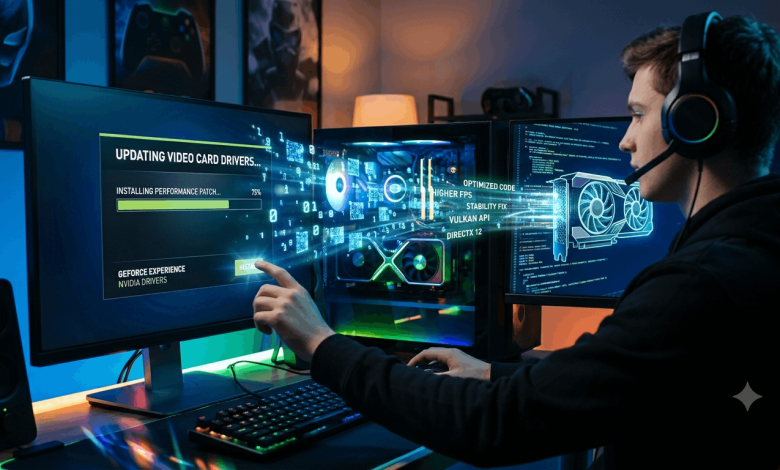
Your graphics card is the artist working behind the scenes of everything you see on your monitor. When it starts showing its age — flickering, crashing mid-game, or just running slower than it should — outdated drivers are often the culprit. Updating your graphics drivers is one of the simplest fixes you can do yourself, and it takes about 10 minutes from start to finish. Here’s exactly how to update your video card drivers, whether you’re running NVIDIA, AMD, or Intel.
Why You Should Update Your Graphics Drivers
Your GPU needs driver software to communicate with your operating system and applications — think of drivers as the translator between your hardware and the programs trying to use it. Without regular updates, your graphics card can’t perform at its best, and you might run into stuttering in games, visual glitches in design software, or even full system crashes.
Manufacturers release driver updates for three main reasons: performance improvements, compatibility with new software, and bug fixes. If you haven’t updated your graphics driver in months, there’s a solid chance your card is leaving performance on the table. Plenty of players see a 5–15% fps boost just from moving off an older driver onto the latest version.
How to Check Your Current Graphics Card Model
Before you can update anything, you need to know exactly what GPU you have. This is the step most people skip, and it’s usually why they end up downloading the wrong driver.
On Windows, open Device Manager by right-clicking the Start button and selecting it, then navigate to Display Adapters and expand the category. Your graphics card will be listed there — write down the exact name and model number.
Mac users can click the Apple menu, select About This Mac, and check the Graphics section. Intel Arc GPU owners on Windows can find their model in Device Manager the same way as any other card.
Another quick option is GPU-Z, a free utility that instantly shows your card’s exact model, memory amount, and even its current temperature. It’s a handy tool worth keeping around.
How to Update Graphics Drivers on Windows
Method 1: Using NVIDIA GeForce Experience
If you own an NVIDIA card, GeForce Experience is your easiest route. Download it from NVIDIA’s website and install it — the app runs quietly in your system tray and checks for driver updates automatically.
Open GeForce Experience, log in or create a free account, then click the Drivers tab at the top. If an update is available, you’ll see a clear notification with the new driver version number. Click Update and let the app handle the rest. Your computer may need to restart after installation.
This method works for any NVIDIA GPU, from budget GTX 1050 models to high-end RTX 4090 cards.
Method 2: Using AMD Adrenalin Software
AMD users should download AMD Software: Adrenalin Edition. Once installed, it automatically detects your Radeon GPU.
Open the application and look for the Updates section. If a new driver is available, you’ll see it listed along with release notes explaining what’s improved. Click Install to grab the latest version. AMD typically releases updates monthly, sometimes more often around major game launches.
Method 3: Manual Download from Manufacturer Websites
This approach takes a few extra minutes but gives you more control. Visit NVIDIA’s driver download page or AMD’s driver page directly.
Enter your GPU model and operating system details, then download the driver file to your desktop. Close any graphics-intensive applications — browsers running video, Discord, streaming software — and run the installer. Choose Custom or Express installation. Express works fine for most people, but Custom lets you do a clean install that removes old driver files first, which is useful if you’ve had driver problems before.
Follow the on-screen prompts and restart your computer when prompted. Your new graphics drivers are now installed.
How to Update Graphics Drivers on Mac
Mac users have fewer options, but the process is simple. Most integrated graphics on Mac (Intel Iris or Apple Silicon) update through regular macOS updates.
Go to System Settings and click Software Update. Your operating system will check for updates, including graphics driver components. If one is available, install it and restart your computer.
For external AMD Radeon eGPUs, you may need to download drivers directly from AMD’s support page, though recent macOS versions include built-in support for most models.
How to Update Your GPU Through the BIOS
If you have an older graphics card and neither the manufacturer’s software nor a direct download works, your GPU BIOS might need updating. This is rare, and it should only be attempted if you’re comfortable working with BIOS access.
Restart your computer and enter BIOS setup — usually by pressing Delete, F2, or F12 during startup, depending on your motherboard. Look for a section labeled Video BIOS or similar. Some systems let you update it directly from a file on a USB drive. If you’re unsure, don’t attempt this. Your system won’t be damaged by outdated drivers, but BIOS changes do carry real risk.
What to Do After You’ve Updated Your Graphics Card Drivers
Once installation finishes and your computer restarts, verify the update actually worked. On Windows, open Device Manager again and check that your graphics card shows the new driver version. You can also check NVIDIA Control Panel or AMD Software to confirm your driver matches the latest release.
Test your system with something graphics-intensive — play a game you normally play, or run a 3D design application. You should notice smoother performance, fewer crashes, and better visual quality overall.
If your computer feels unstable after the update, don’t panic. You can roll back to your previous driver through Device Manager or your manufacturer’s software. Right-click your GPU, select Properties, go to the Driver tab, and click Roll Back Driver.
Common Issues When Updating Graphics Drivers
“I installed the driver but performance hasn’t improved”
Performance jumps from updates aren’t guaranteed every time. Some updates focus on compatibility rather than speed, and others fix bugs that only affected certain games or software. Check the release notes to see what the update actually targets.
Occasionally, a new driver runs slightly slower if it prioritizes stability over raw speed. If the previous version worked better for your specific games, rolling back is completely fine.
“My system keeps crashing after installing new drivers”
Compatibility issues happen. The most reliable fix is a clean uninstall before reinstalling.
Use a tool like DDU (Display Driver Uninstaller) to remove all driver files completely, then restart your computer in Safe Mode. Download the driver file again, restart into normal mode, and reinstall. This clears out conflicting files that a regular uninstall sometimes leaves behind.
“My screen goes black after updating drivers”
This usually means the driver didn’t fully install, or your display settings got reset. Restart your computer in Safe Mode, go to Device Manager, right-click your GPU, select Uninstall Device, then restart and let Windows reinstall the basic driver. From there, manually install the latest version again.
“I can’t find my graphics card model anywhere”
This likely means you’re running integrated graphics rather than a separate card. Intel integrated graphics come with every Intel CPU — download the chipset drivers from Intel’s website for your specific CPU model. For AMD systems, Ryzen processors include Radeon Graphics, which update through Windows Update or direct AMD downloads.
Should You Update Drivers Automatically or Manually?
Both approaches work, and the best choice depends on your situation.
Automatic updates through GeForce Experience or Adrenalin save time and keep you current without having to think about it. The risk is minimal since manufacturer software only installs drivers it has already tested. This is ideal if you game casually and don’t want to troubleshoot driver-specific issues.
Manual updates give you control over timing and let you read release notes before installing anything. You might want to wait a week after a new driver drops to see if other users report problems. This approach suits competitive gamers or people working in graphics-intensive fields, where stability matters more than having the absolute newest driver.
Keep Your Graphics Card Running Smoothly
Updating your graphics driver takes about 10 minutes and requires no technical background. Whether you use NVIDIA GeForce Experience, AMD Software: Adrenalin Edition, or download drivers manually, the process is straightforward. Regular updates keep your GPU stable, improve gaming performance, and protect against security vulnerabilities. Set a monthly reminder to check for updates, and you’ll never fall too far behind.