
Your teacher just wrote a six-digit code on the whiteboard and told the class to “join the live game,” and now you’re staring at a blank screen wondering where to type it. That mix-up happens in classrooms every day, mostly because Conjuguemos Live works a little differently than the regular Conjuguemos site people already know.
This guide walks you through exactly how conjuguemos live works, how students join a session, how teachers log in and start one, and what to do when the code isn’t working. You’ll also find quick fixes for the most common sign-in problems and answers to the questions people search for most.
What Is Conjuguemos Live?
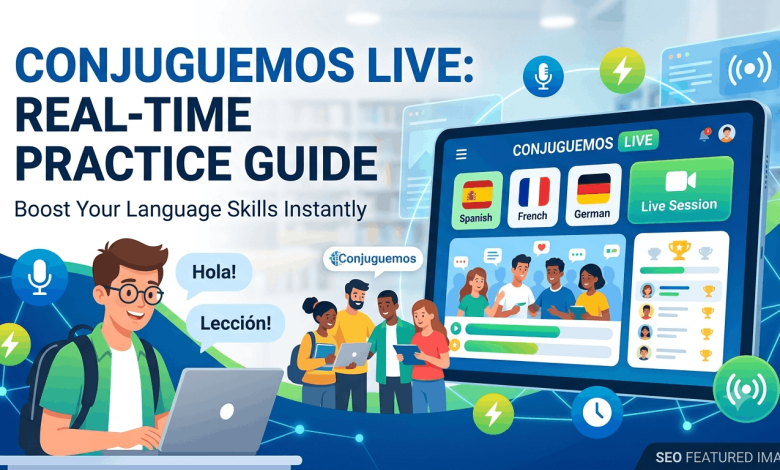
Conjuguemos Live is the real-time, game-based side of the Conjuguemos language platform. Instead of practicing verb conjugations alone on a worksheet, students join a session together and answer the same questions at the same time, often racing each other on a leaderboard.
A teacher builds the activity, picks a game format such as Battleship, Connect Four, or Tug-of-War, and hands out a short join code. Students type that code into the site, and within seconds they’re playing a timed round built around whatever grammar point the class is studying that day.
The regular Conjuguemos platform still exists for solo, self-paced practice. Live sits on top of it as the synchronous, classroom version, similar in spirit to tools like Kahoot or Quizizz but built specifically around Spanish, French, and other world language grammar.
How to Join a Conjuguemos Live Session as a Student
Joining is quick, and in most cases you won’t even need your own account. Here’s the process from start to finish:
- Open your browser and go to the join page your teacher gives you, usually written as conjuguemos.com/live.
- Look for the “Join” button on the page and click it.
- Type in the class or session code your teacher shared, then press enter.
- Enter your first name or nickname if the session asks for one.
- Pick a team if the game mode requires it.
- Wait on the screen until your teacher starts the round, then answer as fast and accurately as you can.
If your teacher assigned individual student accounts, you may be asked to log in with your username and password before you’re dropped into the session. Otherwise, the code alone is enough to get you into the game.
How Teachers Log In and Start a Live Session
Teachers need a full account to run a live session, not just a join code. Start by heading to the main Conjuguemos login page and signing in with your teacher username and password, or through Google or ClassLink if your school uses single sign-on.
Once you’re on your dashboard, pick the activity you want to turn into a live game, whether that’s a verb set, a vocabulary list, or a grammar drill. Select “Live Mode” or “PlayLive,” choose your game format, and set your time limit and difficulty. The system generates a fresh join code for that session, which you can display on a projector or share through your class management tool.
From there, you get a live view of who has joined, who’s answering correctly, and where the class is struggling in real time. You can pause the game to explain a tricky verb form, extend the timer, or end the round early if the class has clearly mastered the material. Reports and grades save automatically once the session ends, so there’s no manual entry afterward.
Fixing Common Conjuguemos Live Login and Join Problems
Most login trouble on Conjuguemos Live comes down to a handful of repeat offenders. Here’s what to check first.
Wrong or expired code. Session codes are generated fresh for each game and expire once the teacher ends it. Double-check the code with your teacher rather than reusing one from last week’s session.
Typos in username or password. Student usernames are often assigned by the school and don’t always match what you’d expect. If your password isn’t working, use the “Forgot password” link on the login page rather than guessing repeatedly.
Browser cache issues. A page that won’t load or a code that won’t submit is often a caching problem. Clear your browser cache or open the site in an incognito or private window and try again.
Wrong login type. Conjuguemos separates students, teachers, and school admins into different login paths. A teacher account won’t work on the student join screen, and a school id and password only apply to admin accounts.
Ad blockers and browser extensions. Some extensions interfere with the live connection Conjuguemos uses to sync scores in real time. Disabling them for the session usually clears up freezing or lag.
Conjuguemos Live vs. the Regular Conjuguemos Site
It helps to know which version you actually need before you go hunting for a login screen. The table below breaks down the practical differences.
| Feature | Regular Conjuguemos | Conjuguemos Live |
| Practice style | Self-paced, solo | Real-time, group-based |
| Account needed | Yes, for tracked progress | Often just a join code for students |
| Best for | Homework, individual review | Classroom games, warm-ups, review days |
| Teacher visibility | Grades after the fact | Live leaderboard and instant results |
| Game formats | Standard drills and quizzes | Battleship, Connect Four, Tug-of-War, and more |
Both versions cover the same core content: verb conjugations, vocabulary, and grammar across languages including Spanish, French, German, Italian, Portuguese, and Latin. The choice usually comes down to whether the class is practicing together right now or working independently.
Tips to Get the Most Out of a Live Session
A little preparation makes the difference between a smooth round and a frustrating one. Close any tabs or apps that might pull your attention away once the timer starts, since these games move fast.
Review the verb forms or vocabulary set beforehand if you can. Live rounds reward recall speed, so a quick warm-up on your own makes the competitive pace feel far less stressful. Teachers report that students who’ve already seen the material once tend to stay more engaged and make fewer careless mistakes under the clock.
If you’re playing on a phone or tablet, use headphones and keep notifications muted so a text message doesn’t cost you a point. And if the class is running the same game format repeatedly, ask your teacher to rotate between a few, since variety keeps the repetition from feeling like a chore.
Frequently Asked Questions About Conjuguemos Live
What is conjuguemos.com/live used for?
It’s the join page for Conjuguemos Live, the real-time gaming side of the platform. Students enter a teacher-provided code there to jump straight into a live verb, vocabulary, or grammar game instead of practicing alone.
Do students need an account to join a live game?
Not always. Many teachers run sessions where students only need the join code and a name to participate. Some schools require a full student login for tracked, graded activities, so check with your teacher if you’re not sure which setup applies.
Why isn’t my Conjuguemos live code working?
The most common reason is that the code expired because the teacher ended or restarted the session. Ask for a fresh code, then try again in an incognito browser window if the problem continues.
How do I log in as a teacher on Conjuguemos?
Go to the Conjuguemos login page and sign in with your teacher username and password, or use Google or ClassLink if your school supports single sign-on. Teacher accounts don’t require a school id, unlike school admin logins.
What languages does Conjuguemos Live support?
It covers Spanish, French, German, Italian, Portuguese, and Latin, with the deepest content library built around Spanish and French verb conjugation. Every language includes vocabulary and grammar activities alongside the core verb practice.
Is Conjuguemos Live free to use?
The core features are free for both students and teachers. Some advanced teacher tools, like expanded data export or premium activity sets, may require a paid school or individual subscription.
Can I play Conjuguemos Live on my phone?
Yes, the platform runs in a mobile browser without needing an app. It works across phones, tablets, and computers, so a Chromebook works just as well as a laptop or desktop.
What game modes are available in Conjuguemos Live?
Popular formats include Battleship, Connect Four, Tic-Tac-Toe, Tug-of-War, and Word Search, each built around answering conjugation or vocabulary questions correctly. Teachers pick the mode that fits their lesson, from quick warm-ups to longer review sessions.
How do I reset my Conjuguemos password?
Click “Forgot password” on the login page and follow the prompts to reset it through your registered email. If you don’t have access to that email, contact your teacher or school admin for help.
Ready to Jump Into Your Next Session
Conjuguemos Live turns ordinary verb drills into a fast, competitive round that students actually look forward to, and getting in usually takes nothing more than a code and a name. Teachers get instant feedback on where the class is struggling, without any manual grading afterward.
If login trouble ever comes up again, start with the basics: a fresh code, a cleared cache, and the right login type for your account. For more help getting set up on language learning platforms, check out our guides on choosing the right study tools for language class and troubleshooting common classroom login issues on reuterings.com.