
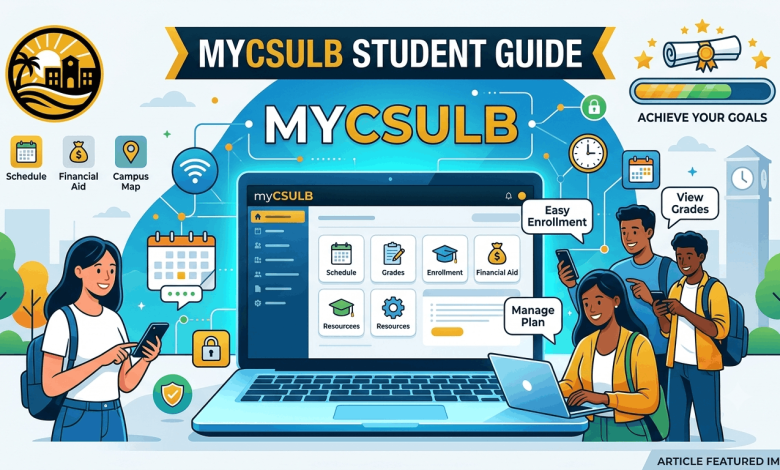
You just got your CSULB acceptance letter, or maybe it’s week two of the semester and you still can’t find where your class schedule lives. Either way, the answer is the same: MyCSULB. This is the single portal California State University, Long Beach uses to connect students, faculty, and staff to grades, tuition bills, financial aid, class registration, and campus email.
This guide walks you through the MyCSULB login process, what’s inside the Student Center once you’re in, how to fix common access problems, and what to do if you’re a brand-new student who hasn’t activated an account yet. No jargon, no guesswork, just the steps you need.
What Is MyCSULB?
MyCSULB is the online student and employee portal for California State University, Long Beach. It sits behind the university’s Single Sign-On system, so one login gives you access to several connected tools instead of separate logins for each one.
Students use it to check grades, register for courses, and pay tuition. Faculty use it to manage class rosters and post grades. Staff use it for payroll, benefits, and internal systems. The portal is organized so each group sees the tools relevant to their role, not a cluttered mix of everything at once.
You’ll reach it at my.csulb.edu, or through the CSULB Single Sign-On page at sso.csulb.edu, where you’ll spot the yellow MyCSULB Student Center tile once you’re logged in.
How to Log In to MyCSULB
Logging in only takes a minute if your account is already active. Here’s the process:
- Go to sso.csulb.edu in your browser.
- Enter your CSULB campus email address (this looks like firstname.lastname@student.csulb.edu for students).
- Enter your BeachID password.
- Complete multi-factor authentication if your device asks for it.
- Click the yellow MyCSULB Student Center tile once the portal dashboard loads.
If this is your first time signing in, or if your credentials aren’t working, skip ahead to the activation and password sections below before trying again.
Activating Your BeachID for the First Time
New students and new employees don’t get instant access. You need to activate your BeachID account first, and this step trips up more new students than anything else on this list.
Here’s what to do:
- Locate your nine-digit Campus ID. New students find this on their admission or enrollment communications.
- Visit beachid.csulb.edu/activate.
- Enter your Campus ID and date of birth.
- Set up your security questions when prompted.
- Create a password that meets CSULB’s complexity rules.
Once activation is complete, your campus email and MyCSULB access turn on together. You don’t need to wait separately for each one.
Inside the MyCSULB Student Center
Once you’re logged in, the Student Center opens into four main panels: Academics, Finances, Personal Information, and Admissions. Each one groups related tools so you’re not hunting through menus.
Academics covers your class schedule, enrollment appointment, grades, and degree progress. Finances handles your tuition balance, payment history, and financial aid awards. Personal Information is where you update your mailing address, emergency contacts, and FERPA release preferences. Admissions shows application status, test scores, and admission offer details for newly admitted students.
What You Can Actually Do With MyCSULB
The portal isn’t just a status page. Depending on your role, you can:
- View your class schedule with dates, times, and building locations
- Register for classes, or add and drop courses during open registration windows
- Check your GPA and run a degree progress report
- Review tuition and fee statements and make payments
- Accept financial aid awards, including grants, scholarships, and loans
- Order official transcripts
- Update contact details and emergency contacts
- View admission decisions and pay an enrollment deposit, for newly admitted students
Faculty and staff get a separate set of tools through the same login, including class rosters, grade submission, payroll information, and benefits enrollment.
Resetting a Forgotten MyCSULB Password
Locked out is the most common reason people search for MyCSULB in the first place. The fix takes a few minutes:
- Go to beachid.csulb.edu/Reset/Default.aspx.
- Enter your Campus ID and date of birth.
- Answer your security questions.
- Set a new password that follows CSULB’s password policy.
Note that your account locks after five failed login attempts, which forces a reset even if you eventually remember the correct password. If the automated reset tool doesn’t work, contact the CSULB Technology Help Desk at 562-985-4959 or helpdesk@csulb.edu, and they can walk you through account recovery manually.
Common MyCSULB Login Problems and Fixes
Most login trouble falls into a handful of repeat categories. Here’s how to sort through them:
Wrong username format. Your login is your full campus email address, not just your Campus ID or first name. Students often try their personal Gmail address out of habit.
Account not yet activated. If you’ve never logged in before, activation comes first. Trying to log in with an inactive account just returns an error, not a helpful message telling you why.
Expired password. CSU campuses require periodic password changes for security. If your password expired, you’ll need to reset it through BeachID rather than re-enter the old one.
Browser or cache issues. Old cached login sessions occasionally block the Single Sign-On handshake. Clearing your browser cache or trying a private/incognito window solves this more often than you’d expect.
MFA device unavailable. If multi-factor authentication is tied to a phone you no longer have, the Help Desk can reset your MFA enrollment so you can register a new device.
If none of these apply, the Technology Help Desk offers a virtual video meeting option through csulb.edu/helpdesk, which is faster than waiting on hold during busy weeks like the start of a semester.
MyCSULB for New and Admitted Students
If you were just admitted to CSULB, MyCSULB is where your next steps live. Log in to check your admission status, view any standardized test scores CSULB has on file (SAT, ACT, AP, IB, or others), accept your offer, and pay your enrollment deposit.
New students should also register for SOAR, CSULB’s orientation program, through the Admissions panel. This is where course placement, advising appointments, and early registration information typically get released first, so checking the portal regularly during your admitted-student period matters more than checking your personal email.
Faculty and Staff Access
Faculty log in through the same sso.csulb.edu portal and select the Faculty Center to view teaching assignments, class rosters, and grade submission tools. If a class you’re scheduled to teach isn’t showing up, that’s a department assignment issue, not a portal bug, so reach out to your department office directly.
Staff and employees use MyCSULB for payroll history, benefits enrollment, leave balances, and internal job postings. Access to each tool depends on your specific role and approved permissions, so not every employee sees the same menu.
Keeping Your MyCSULB Account Secure
CSULB encrypts all data moving between your browser and the portal using standard SSL encryption, and multi-factor authentication adds a second layer beyond your password. A few habits on your end matter too:
- Never share your BeachID password, even with classmates who say it’s just to check a grade for you
- Log out of shared or public computers instead of just closing the browser tab
- Update your security questions if you set them years ago and can’t remember your answers
- Report suspicious login emails to the Help Desk rather than clicking links inside them
Frequently Asked Questions About MyCSULB
What is my MyCSULB login?
Your MyCSULB login is your CSULB campus email address paired with your BeachID password. Students typically use a firstname.lastname@student.csulb.edu format. If you haven’t activated your account yet, you’ll need your nine-digit Campus ID and date of birth to set one up first.
How do I access MyCSULB Student Center?
Go to my.csulb.edu or log in through sso.csulb.edu, then click the yellow MyCSULB Student Center tile on your dashboard. Once inside, you’ll see four panels: Academics, Finances, Personal Information, and Admissions.
What is my CSULB Campus ID?
Your Campus ID is the nine-digit number assigned when you’re admitted or hired. New students can find it on enrollment communications from the university, typically in the bottom right corner of official letters or emails.
How do I reset my BeachID password?
Visit beachid.csulb.edu/Reset/Default.aspx and enter your Campus ID and date of birth to start the reset. If the automated tool fails or your account is locked, call the Technology Help Desk at 562-985-4959 for manual assistance.
Why can’t I log into MyCSULB?
The most common causes are an unactivated account, an expired password, entering the wrong username format, or an outdated browser cache. Work through each of these before assuming there’s a broader system outage.
Is MyCSULB the same as Canvas?
No. MyCSULB is the student information portal for registration, grades, and tuition, while Canvas is CSULB’s separate learning management system for course content, assignments, and discussion boards. Both use the same BeachID login, but they’re different platforms with different purposes.
How do I check my financial aid status on MyCSULB?
Log in and open the Finances panel in your Student Center, then select the financial aid section to view your award package, including grants, scholarships, and loan offers by term.
Can parents access MyCSULB?
Not directly. Students can grant a parent, spouse, or third party limited access to specific information through a FERPA release form managed inside the Personal Information panel, but parents don’t get their own separate login.
What do I do if my MFA device is lost or replaced?
Contact the Technology Help Desk at helpdesk@csulb.edu or 562-985-4959 to reset your multi-factor authentication enrollment so you can register a new device.
Get Into Your Account and Stay on Top of Deadlines
MyCSULB is the one login that ties together your schedule, grades, tuition, and financial aid, so bookmarking sso.csulb.edu now saves you a search later. If your account isn’t active yet, handle that at beachid.csulb.edu/activate before registration windows open. For login trouble that these steps don’t solve, the Technology Help Desk remains the fastest path to a fix.
If you found this guide useful, check out our other CSULB and campus portal walkthroughs on Reuterings for step-by-step help with other university login systems.