
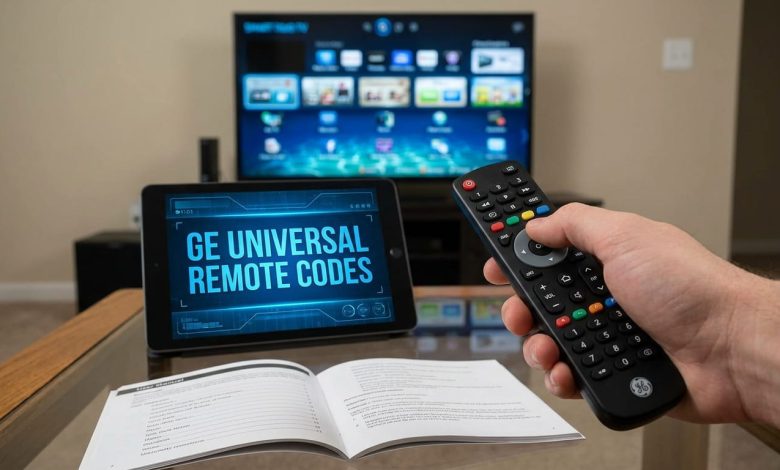
You just replaced your cable box, and now the GE remote sitting in your drawer won’t talk to it. Sound familiar? Finding the right GE universal remote codes shouldn’t take an hour of guessing and button mashing. This guide gives you the actual code list, the exact steps for pairing, and the fixes for when a code just won’t stick. By the end, you’ll have your GE remote controlling your TV, DVD player, soundbar, or cable box without a second trip to the manual you probably lost years ago.
What You Need Before You Program Your GE Remote
Grab your GE universal remote and check the battery compartment first. Pull the batteries out for a second and look for a small sticker inside the case. That sticker tells you which code list version your remote uses: CL3, CL4, CL5, or CL6.
Older GE remotes from around 2015 and earlier usually run CL3. If you bought yours after 2021, you’re probably holding a CL5 or CL6 model. This matters because the same brand can have different codes across versions, and using the wrong column wastes your time.
Put fresh batteries back in before you start. A weak battery is one of the most common reasons a GE remote control codes entry fails halfway through, even when the code itself is correct.
How to Program a General Electric Universal Remote (Step-by-Step)
Programming a GE universal remote takes a few minutes once you have the right code. Here’s the direct-entry method that works across most CL3 through CL6 models:
- Turn on the device you want to control (TV, DVD player, cable box, or soundbar) and keep it powered on.
- Point the remote at the device and press the button for that device, such as TV, DVD, or AUX.
- Press and hold the Setup button until the red indicator light stays on steadily.
- Press the device button again (TV, DVD, AUX, and so on).
- Enter the 3 or 4 digit code from the code list below.
- Watch the red light. If it turns off after the last digit, the code took. If it blinks instead, you’ll need to try again.
- Test the remote by pressing Power. If the device shuts off, you’re set. If nothing happens, repeat the process with the next code listed for your brand.
Some brands have five or six possible codes because manufacturers reuse chip sets across different models and production years. Don’t stop at the first code that fails. Work through the list in order.
GE Universal Remote Code List by Brand
Below are the most requested GE universal remote control codes, organized by brand. Always match these to your remote’s CL sticker first, since a CL3 remote won’t recognize a CL6 code and vice versa.
| Brand | Codes |
| GE (General Electric) TVs | 4921, 0141, 0191, 1001, 0001, 0041, 0051, 0261, 3451, 0361, 0791, 1221, 1921, 1951, 2151, 3431, 4011 |
| Samsung TVs | 0178, 0463, 0464, 0359, 0956, 1195 |
| LG TVs | 0178, 0322, 1972, 0463, 1364, 0286 |
| Sony TVs | 0053, 0058, 1197, 0128, 0663 |
| Vizio TVs | 1362, 3221, 1758, 1268 |
| Sharp TVs | 0178, 0765, 0813, 0004 |
| Insignia TVs | 2891, 0371, 2271, 0141, 6171, 0581, 0871, 0921, 2241 |
| Toshiba TVs | 0178, 0463, 0053, 0958 |
| Roku TVs (TCL, Hisense, Sharp Roku models) | 3663, 1362, 1091 |
A remote with the older 3-digit format is almost always a CL3 unit and only handles basic power, volume, and channel functions. The newer 4-digit codes on CL5 and CL6 models unlock more complete control, including input switching and, on some devices, menu navigation.
Programming Your GE Remote for DVD, VCR, and Audio Devices
The steps for pairing a GE remote to a DVD player, VCR, or sound system mirror the TV process, with one difference: you press the AUX, DVD, or AUDIO button instead of TV in step 2 and step 4.
If your remote lists two numbers together in brackets for a single brand, the first code usually pairs the DVD function and the second pairs the AUDIO function on combo units. Try both if one only gets you partial control, like play and pause working but not volume.
For soundbars specifically, use the AUX slot on 4-device and up models. Most current GE universal remote codes for soundbars sit in the same numeric range as the audio receiver codes for that same brand.
How to Program a GE Universal Remote Without a Code
Don’t have the right number, or is your brand missing from the list? Use auto code search instead. It’s slower but it works even when you can’t find your model’s printed codes.
- Turn on the device.
- Press and hold Setup until the red light turns on.
- Press the device button (TV, DVD, AUX).
- Press and release the Power button repeatedly, once every couple of seconds, while pointing the remote at the device.
- Watch the device closely. The moment it turns off, stop pressing Power.
- Press Enter or Stop right away to lock in that code.
This method scans through hundreds of stored codes one at a time, so timing matters. If you miss the moment the device shuts off and keep pressing, the remote will scroll past the working code and you’ll need to start over.
Troubleshooting Common GE Universal Remote Problems
Even with the correct codes, pairing can go sideways. Here’s what usually causes it and how to fix it.
Partial function response: If Power works but Volume doesn’t, you likely grabbed a code that only maps basic functions. Cycle through the other listed codes for your brand until one gives you full control.
Red light won’t turn off: This usually means a dead battery, not a bad code. Swap in fresh batteries and start the process again from step one.
Remote works, then stops the next day: Check whether anything reset the remote, like removing the batteries for an extended time. Some GE models lose stored codes if they sit without power for more than a few minutes.
Brand not listed anywhere: Try the auto code search method described above, or check byjasco.com, since Jasco (the manufacturer behind current GE remotes) keeps an updated database by model number.
Need a full reset: Hold Setup until the light stays on, then press Mute followed by 0. Two blinks confirm the wipe, and you’ll need to reprogram each device slot from scratch.
Frequently Asked Questions About GE Universal Remote Codes
What is the 4 digit code for a GE universal remote?
The 4 digit code depends entirely on the brand and device you’re pairing. There’s no single universal number. Check the brand-specific list above, find your device type, and enter that code during the Setup process outlined earlier in this guide.
How do I find my GE remote’s CL version?
Remove the battery cover and take out the batteries. Look for a small printed sticker inside the compartment marked CL3, CL4, CL5, or CL6. This tells you which column of codes applies to your specific remote model.
How many devices can a GE universal remote control?
Most GE universal remotes handle 2 to 4 devices, though some models extend to 6 or 8 device slots. Check the buttons on your remote itself. Each labeled device button (TV, DVD, AUX, AUDIO) represents one programmable slot.
Why isn’t my GE universal remote working after I entered the code?
The most common cause is a partial code match, where only some functions respond. Try the next code listed for your brand. Weak batteries and a blocked infrared path between the remote and device cause plenty of failures too.
How do I reset my GE universal remote to factory settings?
Hold the Setup button until the light stays lit, then press Mute and 0 in sequence. Two blinks from the indicator confirm the reset worked, clearing every stored device code so you can start programming fresh.
Do GE universal remotes work with smart TVs and streaming devices?
Yes, for basic functions like power, volume, and channel or input switching. Since most smart TV apps and streaming menus rely on Bluetooth or app-based navigation, a GE universal remote won’t replace a smart remote for voice search or app shortcuts.
What if my TV brand isn’t on the code list?
Use the auto code search method covered above, which scans stored codes automatically instead of requiring a specific number. You can also check the manufacturer’s site directly, since new brands and models get added to the database regularly.
Can one GE universal remote code work for multiple brands?
Occasionally, yes. Manufacturers sometimes share the same internal chipset across different TV brands, so a code meant for one brand may work on another. This isn’t reliable enough to count on, so stick with your specific brand’s list first.
Get Your GE Remote Working Today
Pairing a GE universal remote comes down to three things: knowing your CL version, using the right code for your brand, and testing each function before you move on. If a code fails, the fix is almost always trying the next one on the list or switching to auto code search.
Once your TV is set up, check out our guides on programming RCA universal remotes and fixing common streaming device remote issues on reuterings.com for your other devices.