
You’re standing in line for coffee, trying to check your last paycheck before a big purchase, and your phone asks for a “company access code” you’ve never heard of. That moment trips up more new hires than you’d expect. The UKG Pro login process is simple once you know where the pieces come from, but almost nobody explains it clearly the first time around. This guide walks you through the UKG Pro login employee steps, where to find your company access code, and how to get the mobile app working on your phone without calling HR three times.
What Is UKG Pro and Why You Need to Log In
UKG Pro is the HR and payroll platform many mid-size and large companies use to manage pay statements, time-off requests, benefits enrollment, and personal information. If your employer switched to UKG Pro (formerly known as UltiPro), this is the portal where your pay stubs, W-2 forms, and schedule live now.
You’ll log in any time you need to check a paycheck, update your address, request vacation, or review your benefits. Most companies also use it for open enrollment and performance reviews, so it’s worth bookmarking rather than searching for it every time.
How to Complete the UKG Pro Login for Employees
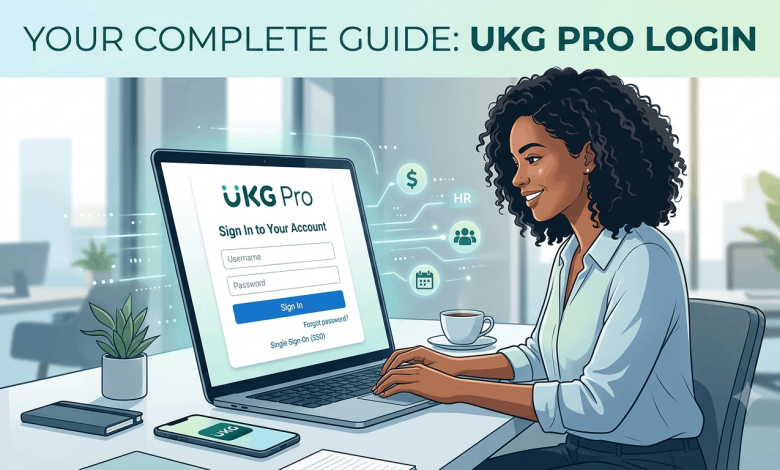
The UKG Pro login employee process has three parts: your company’s specific web address (or access code), your username, and your password. Here’s the sequence most employees follow.
- Get your company’s UKG Pro web address from HR. Every organization has its own login URL, something like yourcompany.ultipro.com or a link shared through onboarding materials.
- Enter your username. This is often your work email address or an employee ID your HR team assigned during setup.
- Enter your password. If this is your first login, you’ll usually be prompted to create one and set up security questions.
- Complete multi-factor authentication if it’s turned on. You’ll get a code by text, email, or an authenticator app, then type it in to confirm it’s really you.
- Land on your dashboard. From here you can view pay statements, submit time-off requests, and update personal details.
If your company uses single sign-on, you won’t type a separate UKG Pro password at all. You’ll click a company link and your existing work credentials handle the rest.
Finding Your UKG Pro Company Access Code
The company access code trips up more people than any other part of this process, mainly because it only shows up in specific spots. This code identifies which employer’s data the app should pull up, and it’s different from your personal password.
Here’s where to actually find it:
- Check your onboarding email or new-hire packet. Most HR departments send this code along with your first login instructions.
- Ask your HR administrator directly. If you’ve lost the original message, this is the fastest fix.
- Look inside the desktop version, if you already have access. Go to the User Account icon, then Mobile App Instructions, and the code often appears there for you to copy.
- Scan a QR code if your company provided one. Some employers set up a QR code that fills in the access code automatically when scanned from the mobile app’s login screen.
One thing worth knowing: UKG itself doesn’t hold your company’s server name or access code on file for you to request. Your employer controls that information, so if you’re stuck, HR is the only real shortcut.
Logging Into UKG Pro on Mobile
The UKG Pro mobile app works for both iOS and Android, and it mirrors most of what you can do on the desktop site, plus a few extras like push notifications for approved time-off requests.
Setting Up the App for the First Time
Download the UKG Pro app from the App Store or Google Play, then open it and enter your company access code or scan the QR code your employer gave you. After that, you’ll sign in with your username and password just like the desktop version, or tap “Sign In with Corporate Credentials” if your company uses SSO.
Using Biometric Login
Once you’re in, the app will offer to save Touch ID, Face ID, or fingerprint access for faster logins later. This is convenient, but keep in mind that anyone with their own biometrics stored on your device can open your account too, so this feature makes more sense on a personal phone than a shared one. Biometric access typically expires after 180 days for general use, and after 30 days for anything involving sensitive changes, so don’t be surprised if you’re asked to re-enter your password periodically.
Managing Multiple Companies
If you work more than one job that both use UKG Pro, you can add multiple company access codes to the app. You’ll still need to log into each one separately, since the app only keeps one company active at a time.
What to Do If You Can’t Log In
Login issues usually fall into a few categories, and most have a quick fix.
Forgot your password? Select “Forgot my password” on the login screen and follow the reset prompts. You’ll typically verify your identity through security questions or a code sent to your email.
Too many failed attempts? Your account gets locked automatically after repeated wrong passwords, which is a built-in security measure rather than a glitch. Use the password reset option, or contact your administrator to unlock it.
Wrong or missing company access code? Double-check with HR that you’re using the current code, since some companies update it periodically.
SSO login failing? You may need to connect to your company’s VPN first, especially if you’re working remotely and your organization restricts SSO access to its internal network.
Still stuck? UKG runs an Employee Engagement Center that handles login and access problems for issues that aren’t just an expired code. Hours typically run Monday through Friday, though your exact support contact depends on how your employer set things up, so check your onboarding materials for the specific number or portal.
Security Features Worth Knowing About
UKG Pro logs you out automatically after 20 minutes of inactivity, which protects your pay and personal data if you step away from a shared computer. Multi-factor authentication adds another layer, sending a one-time code to your phone or email whenever you log in from a new device.
IP filtering is respected in the mobile app too, meaning your organization can restrict access based on location or network if that’s part of their security policy. None of this should slow down your day-to-day use, but it explains why you might get asked to re-verify your identity more often than with other apps.
Frequently Asked Questions About UKG Pro Login
What is my UKG Pro company access code?
Your company access code is a unique identifier your employer assigns so the app knows which organization’s data to load. HR typically sends it during onboarding, and you can also find it inside the desktop portal under Mobile App Instructions if you already have access.
How do I reset my UKG Pro password?
Select “Forgot my password” on the login screen and follow the verification steps, which usually involve answering security questions or confirming a code sent to your email. If that doesn’t work, your HR administrator can reset it manually from their end.
Can I use UKG Pro without a company access code?
No, the access code is required the first time you log in through the mobile app, since it tells the system which company’s environment to connect you to. You typically only need to enter it once unless you delete and reinstall the app.
Why does UKG Pro log me out after a few minutes?
The 20-minute automatic logout is a built-in security feature, not a bug, designed to protect sensitive pay and personal data if you leave your device unattended. You’ll need to log back in with your credentials or biometrics to continue.
Is the UKG Pro mobile app free?
Yes, the app is free to download from the App Store or Google Play, and it works the same way across iOS and Android devices. You only need your company access code and login credentials to use it.
Can someone else access my account through biometric login?
Yes, if another person has their fingerprint, Face ID, or Touch ID stored on your device, they can open your UKG Pro account the same way you do. Only enable biometric login on a device that stays under your control.
What’s the difference between UKG Pro and UKG Ready?
UKG Pro generally serves larger organizations with more complex HR, payroll, and workforce management needs, while UKG Ready is built for smaller businesses looking for a simpler setup. Which one you use depends entirely on which platform your employer purchased.
Why can’t I find my company’s UKG Pro web address?
UKG doesn’t maintain a public directory of company login URLs, since each organization manages its own server name and access details. Your HR or IT department is the only reliable source for this information.
Getting Back Into Your Account
The UKG Pro login process comes down to three things: your company’s specific access code or URL, your personal credentials, and patience with the security checks that protect your payroll data. Keep your access code saved somewhere you’ll actually find it again, and set up biometric login only on a device you control.
If you’re setting up a new phone or troubleshooting a separate work app, check out our guides on mobile app login troubleshooting and workplace technology setup for more step-by-step help.