
Your kid comes home and says the homework is posted on Schoology, but you can’t remember your myOLSD password. Or maybe you’re a student trying to check a grade before class starts in ten minutes. Either way, the myOLSD login process trips people up more often than it should, mostly because the portal connects to several different systems at once. This guide walks you through logging into myOLSD, reaching PowerSchool and Schoology from it, and fixing the login problems that come up most.
What Is MyOLSD?
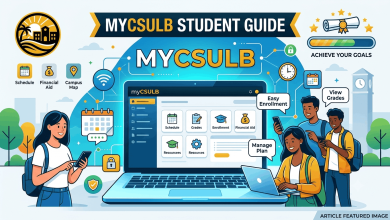
MyOLSD is the single sign-on portal for Olentangy Local School District (OLSD), a public school district in Delaware County, Ohio, serving communities that include Lewis Center, Powell, and parts of Columbus. The district runs the portal through ClassLink, a service that lets students, parents, and staff open multiple school tools with one login instead of juggling separate passwords for each one.
From the my.olsd dashboard, you can reach PowerSchool for grades and attendance, Schoology for assignments and classwork, your district email, and digital textbooks. Olentangy serves more than 22,000 students across roughly two dozen schools, so a shared login system saves the district’s IT staff from managing a mountain of separate accounts.
How to Log Into MyOLSD
Logging in takes just a few steps once you know where to go. Here’s the process for a standard username-and-password login:
- Go to launchpad.classlink.com/olentangy in your browser. This is the official myOLSD login page.
- Click Sign In With SAML. You’ll get redirected to the district’s authentication page.
- Enter your username and password in the fields provided.
- Click Sign In to load your dashboard.
Your username typically follows a set pattern: your student ID number followed by your first initial and last name. So a student named Sarah Miller with ID 456789 would likely log in as 456789smiller. Your password matches the one you use for your district-issued email account. If you’re not sure what either one is, your school’s office can confirm both, but they won’t be able to see or reset a forgotten password themselves in most cases without going through IT.
Logging In With a QuickCard
Younger students who aren’t ready to type a username and password can use a QuickCard instead. It’s a small card printed with a QR code that acts as a login credential. On the myOLSD login screen, select the QuickCard option, then hold the card up to your device’s camera. The system scans the code and signs you in automatically, no typing required.
Teachers usually keep a stack of these on hand for elementary classrooms, and losing one just means asking the teacher for a replacement rather than resetting a password.
Logging In on a District Chromebook
If your student uses an OLSD-issued Chromebook, the login works a little differently. Turn on the Chromebook, enter the same username and password you’d use elsewhere, and select Next. The Chromebook signs in and connects directly to the myOLSD environment, so there’s no separate step to reach the portal afterward. It’s the fastest path if you’re already on district hardware.
Accessing PowerSchool Through MyOLSD
PowerSchool is where Olentangy tracks grades, attendance, and class schedules, and it’s usually the main reason parents log into the portal at all. Once you’re signed into myOLSD, click the PowerSchool icon on your dashboard to open it without entering a second password.
If the icon doesn’t load or PowerSchool feels stuck, go directly to powerschool.olentangy.k12.oh.us and sign in there with your myOLSD credentials. This bypasses the dashboard entirely and works even if something is temporarily off with the ClassLink launcher itself. From PowerSchool, parents can view report cards, check attendance in close to real time, and message teachers, while students can see assignment scores as teachers post them.
Accessing Schoology Through MyOLSD
Schoology is Olentangy’s learning management system, meaning it’s where assignments, class materials, and discussion boards live. You can open it directly from the myOLSD dashboard, or sign in separately through Schoology’s own site if needed.
To log into Schoology on its own, visit schoology.com, click Login, then choose SSO Login. Type “Olentangy” when prompted for your school or district name, then enter your myOLSD username and password. This route comes in handy if the myOLSD dashboard is loading slowly but Schoology itself is working fine.
Fixing Common MyOLSD Login Problems
Most login issues fall into a short list of usual suspects. Here’s what tends to cause them and how to clear each one.
Wrong username or password. Typos are the most common culprit, especially with usernames that combine a student ID with initials. Double-check for extra spaces or a mixed-up letter before assuming your account is broken.
Account lockouts. Entering the wrong password several times in a row triggers a temporary lock as a security measure. Wait a short while and try again, or contact your school’s IT support if the lock doesn’t clear on its own.
Browser compatibility issues. Older browser versions sometimes struggle to load the ClassLink login screen properly. Switching to an updated version of Chrome, Firefox, or Edge usually resolves it.
Cached data conflicts. A browser holding onto old login data can cause the page to hang or reject a correct password. Clearing your cache and cookies, then reloading the page, fixes this more often than people expect.
Security software interference. Some antivirus programs or school-issued firewall settings block scripts the login page needs to run. If you’re on a personal device with strict security software, try temporarily disabling it to see if that’s the issue.
If none of these work, your school’s front office or IT help desk is the right next call. Because students and parents can’t reset ClassLink credentials on their own, district staff have to handle that step directly.
Who Manages MyOLSD Accounts?
Account creation happens on the administrative side, not through self-registration. When a student enrolls, the school’s IT team sets up their myOLSD account and issues login credentials, usually as part of the broader enrollment paperwork. Parents typically receive their own separate login tied to their child’s records rather than sharing the student’s account.
This setup means a family with three kids in different Olentangy schools will have one parent account linked to all three students, letting them switch between children’s records without logging out and back in.
Frequently Asked Questions About MyOLSD
What is my myOLSD username?
Your myOLSD username typically combines your student ID number with your first initial and last name, written together with no spaces. If that format doesn’t work, check with your school’s front office, since some buildings use slightly different conventions.
How do I reset my myOLSD password?
You can’t reset a myOLSD password on your own. Contact your school’s IT department or front office, and they’ll walk you through resetting it or issuing a temporary one tied to your account.
Is there a myOLSD app?
Yes. The ClassLink LaunchPad app, available on both the App Store and Google Play, gives you mobile access to the same dashboard you’d see on a computer, including PowerSchool and Schoology shortcuts.
Why can’t I log into myOLSD PowerSchool?
Usually it comes down to an incorrect password, a temporary account lock, or a browser issue. Try going directly to powerschool.olentangy.k12.oh.us with your myOLSD credentials, and clear your browser cache if the page won’t load properly.
Can parents create their own myOLSD account?
No. Parent accounts are set up by the district, usually during student enrollment or shortly after. If you’re a new parent without login details, contact your child’s school office to get credentials issued.
What’s the difference between myOLSD and PowerSchool?
MyOLSD is the single sign-on portal that connects to multiple tools at once, while PowerSchool is one of those tools, specifically handling grades, attendance, and schedules. Logging into myOLSD gives you one-click access to PowerSchool without a second password.
Does myOLSD work on Chromebooks?
Yes, and it’s actually the smoothest option for district-issued Chromebooks. Signing into the Chromebook itself with your myOLSD credentials connects you to the portal automatically, without an extra login step.
What is a QuickCard used for?
A QuickCard is a QR-code card that lets younger students log into myOLSD by scanning it instead of typing a username and password. It’s mainly used in elementary schools where typing long credentials isn’t practical yet.
Getting Back Into Your Account
Most myOLSD login problems trace back to a mistyped credential, a browser hiccup, or a temporary lockout, and each one has a quick fix. Bookmark launchpad.classlink.com/olentangy so you’re never searching for the right URL, and keep your school’s IT contact handy for the times a password reset needs a real person on the other end.
If you’re still exploring what the Olentangy portal offers, check out our other guides on navigating PowerSchool grade reports and troubleshooting Schoology login errors for a deeper look at each connected tool.